How To Use
Follow these simple steps to quickly get started with the TG Downloader Chrome extension
Install the Extension
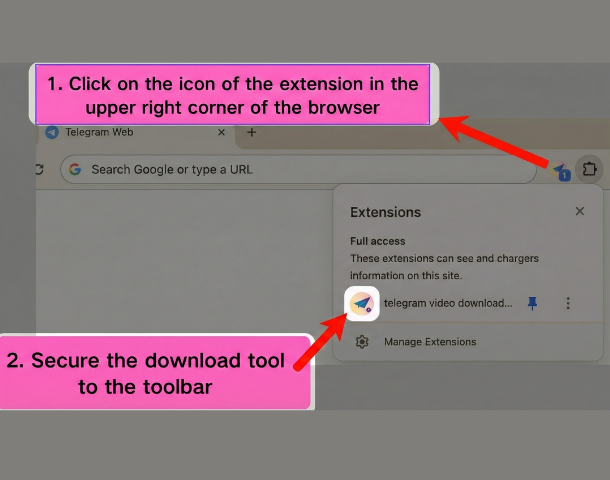
Install the TG Downloader extension from the Chrome Web Store and click "Add to Chrome" to complete the installation. Click the extension icon (puzzle shape) in the top-right corner of your browser, find "TG Downloader," and click the pin icon to pin it to the toolbar for quick access.
💡 Tip: Once pinned, the extension icon will always be visible in your browser toolbar.
Access Telegram Web
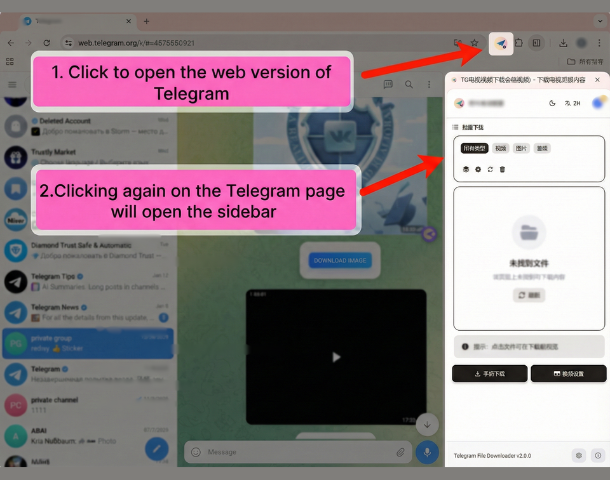
Open Telegram Web (in your browser at https://web.telegram.org/k or https://web.telegram.org/a), then click the extension icon to open the sidebar. The sidebar offers file search and filtering, and lets you filter media files by type.
Quick Access via Sidebar
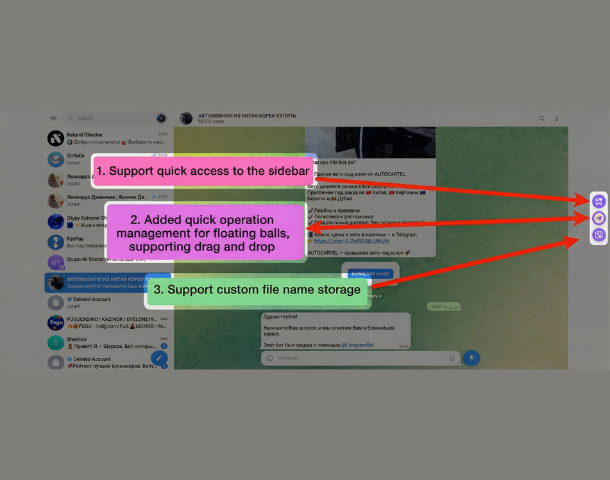
Use the sidebar for quick access features, including floating ball drag-and-drop and custom file naming for an easy file management experience.
Batch Download
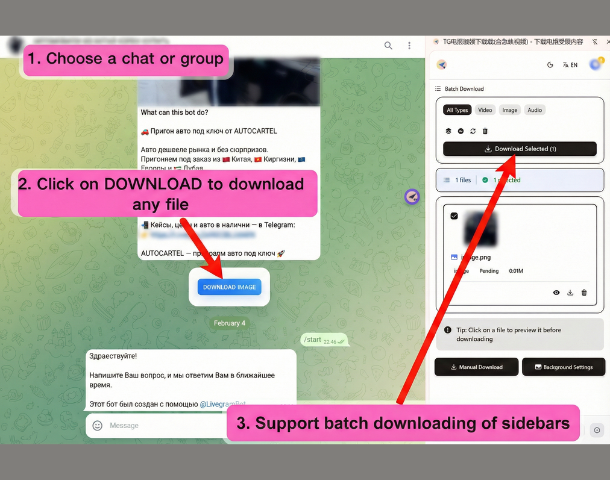
Use the Side Panel feature to manage batch downloads. You can view and control download tasks and see all files pending or already downloaded.
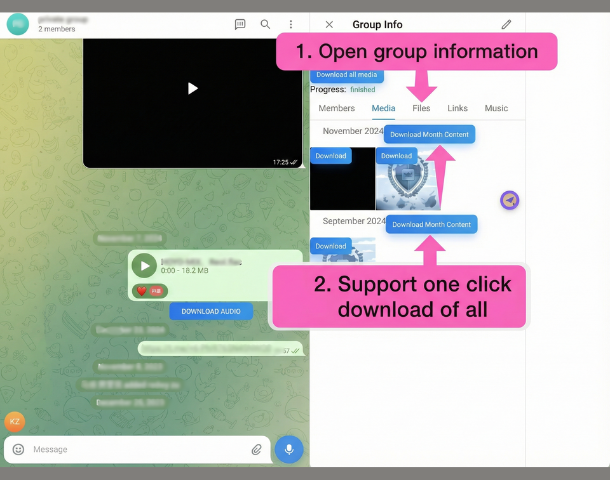
View Group Info & Batch Download
Open the group info page to view media file statistics, one-click download all media files, and batch download by month.
Get Started with TG Downloader
Now that you know all the features, start experiencing efficient Telegram file downloading right away!